
Skip to main content
How Can We Help?
Understanding the Dashboard
The Bluvia A/B Testing dashboard provides an overview of your website’s experiments, performance, and optimization opportunities.
From the dashboard, you can monitor active tests, review recent results, identify areas that need attention, and access insights based on data collected from your website.
Dashboard Overview
The dashboard organizes your testing activity into several sections:
- This Week’s Win — Highlights an experiment showing positive results.
- Needs Attention — Identifies experiments that may require review.
- Biggest Opportunity — Highlights content that could benefit from additional testing.
- Active Tests — Shows experiments currently running on your website.
- What Changed Because of Experiments — Summarizes recent performance metrics.
- Insights — Displays recommendations and notifications based on collected experiment data.
These sections help you quickly understand what’s happening without opening each experiment individually.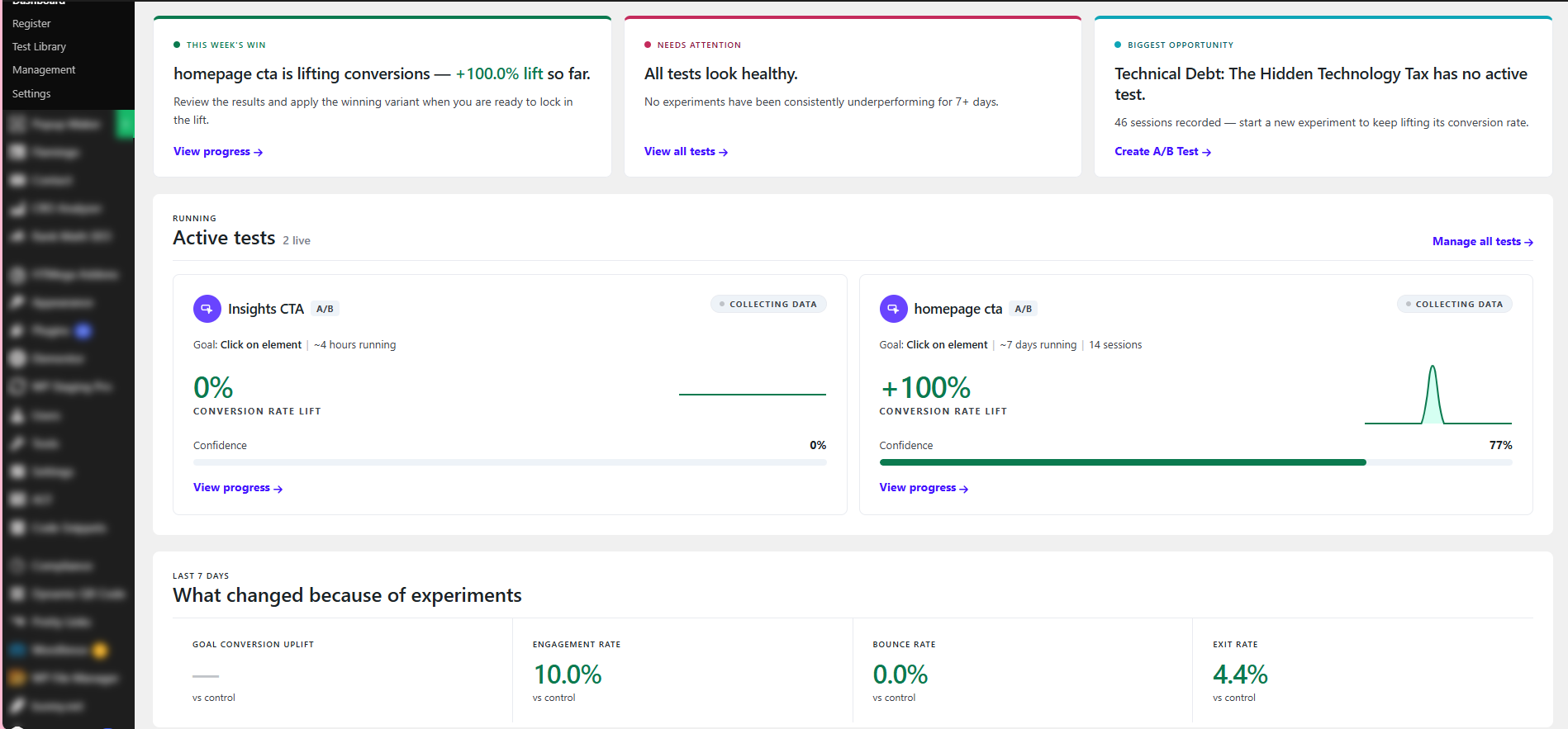
This Week’s Win
The This Week’s Win card highlights an experiment showing positive performance.
For example, if a Variant is generating more conversions than the Control, the dashboard may display its current conversion rate lift.
Select View Progress to open the experiment and review its results.
A positive lift does not automatically mean an experiment has reached statistical confidence. Always review the experiment’s confidence level and sample size before declaring a winner.
See Identifying Winning Variants for more information.
Needs Attention
The Needs Attention card helps identify experiments that may require action.
For example, the dashboard may highlight experiments that have been consistently underperforming for seven or more days.
If no experiments require attention, the card may display a message indicating that your tests look healthy.
Select View All Tests to open the Test Library and review your experiments.
Biggest Opportunity
The Biggest Opportunity card identifies content that may benefit from a new experiment.
For example, the dashboard may highlight a page that has received visitor sessions but does not currently have an active test.
This can help you identify opportunities to continue optimizing your website.
Select Create A/B Test to begin creating an experiment for the suggested content.
Recommendations are starting points for testing, not guarantees that a change will improve performance.
Active Tests
The Active Tests section displays experiments currently running on your website.
Each experiment card provides a quick summary of its performance.
Depending on the experiment and available data, you may see:
- Experiment Name — The name of the active test.
- Goal — The conversion action being measured.
- Running Time — How long the experiment has been active.
- Sessions — The number of recorded visitor sessions.
- Conversion Rate Lift — The percentage improvement or decline compared with the Control.
- Confidence — The current statistical confidence level.
- Performance Chart — A visual representation of recent performance.
- Status — Whether the experiment is still collecting data.
Understanding Conversion Rate Lift
Conversion rate lift measures the relative difference in conversion performance between a Variant and the Control.
For example, if the Control converts at 5% and the Variant converts at 10%, the Variant has a 100% conversion rate lift.
A positive lift indicates that the Variant is currently performing better than the Control. A negative lift indicates that it is performing worse.
However, lift alone does not determine whether the result is statistically reliable.
Understanding Confidence
The confidence indicator helps you evaluate the statistical reliability of an experiment’s results.
For example, a test showing a 100% conversion rate lift with 77% confidence may look promising, but it has not yet reached a 95% confidence threshold.
Experiments with limited traffic may show large changes in lift that become smaller or reverse as more data is collected.
See Statistical Confidence and Understanding Sample Size for more information.
Viewing Experiment Progress
Select View Progress on an experiment card to open its detailed results.
From there, you can review performance, compare Variants, and manage the experiment.
Select Manage All Tests to open the Test Library.
What Changed Because of Experiments
The What Changed Because of Experiments section summarizes recent website performance associated with your experiments.
The dashboard displays metrics for the last 7 days, including:
These metrics help you understand how experiments may be affecting visitor behavior beyond the primary conversion goal.
If insufficient data is available, some metrics may not yet display a value.
Use these metrics alongside your experiment reports rather than as the sole basis for declaring a winner.
Insights
The Insights section provides notifications and recommendations based on data collected by Bluvia A/B Testing.
Insights help you identify experiments that need attention and opportunities for improving your website.
For example, an insight may indicate that an experiment has received too few visits to produce reliable results.
An insight may include:
- A description of the finding or recommendation.
- The experiment or page it relates to.
- Supporting performance data.
- An action to open the associated experiment.
Select Open Test to review the experiment.
You can also dismiss an insight using the X icon when it is no longer relevant.
AI-Powered Insights
If your account license has access to the Bluvia A/B Testing AI Optimize plan, you can also generate AI-powered optimization suggestions using data collected from your website.
These suggestions use tracked visitor behavior and performance data to help identify potential improvements.
AI-generated suggestions may help you:
- Identify pages or elements that could benefit from optimization.
- Discover opportunities to improve visitor engagement.
- Develop ideas for new experiments.
- Prioritize potential changes based on available data.
AI recommendations are suggestions rather than confirmed improvements. Changes should be evaluated through experiments before being adopted permanently.
AI-powered suggestions require access to the applicable AI plan. Standard dashboard reporting and available non-AI insights do not require AI-generated recommendations.
See Insights & Optimization Suggestions and Understanding AI Recommendations for additional information.
Dashboard Actions
The dashboard provides shortcuts to common tasks.
These actions allow you to move directly from reviewing performance to managing or creating experiments.
When Dashboard Data Is Limited
Some dashboard sections may show limited information when your website is new or experiments have only recently started collecting data.
For example:
- A new experiment may show 0% lift because there is not enough conversion data.
- Confidence may remain low until additional visitor data is collected.
- Performance charts may show little activity.
- Some summary metrics may be unavailable.
- Insights may recommend allowing an experiment to collect more data.
This is expected when experiments have not yet collected sufficient information.
Avoid making decisions based on a small number of visits or conversions.
See How Long Should a Test Run? for guidance on evaluating experiment duration.
Using the Dashboard to Guide Optimization
A useful workflow is to:
- Review This Week’s Win to identify experiments showing positive results.
- Check Needs Attention for experiments that may require investigation.
- Review Active Tests to monitor lift, confidence, and progress.
- Check Recent Performance to understand how experiments are affecting visitor behavior.
- Review Insights for issues or potential optimization opportunities.
- Create New Experiments when you identify changes worth testing.
The dashboard is intended to provide a quick overview. Use individual experiment reports when you need more detailed performance information.