
Skip to main content
How Can We Help?
Cleanup Automation
Cleanup Automation in Bluvia A/B Testing helps manage stored data by automatically deleting old experiments, heatmaps, and session recordings based on your selected retention periods.
This helps reduce unnecessary storage usage and keeps your WordPress database organized without requiring you to manually delete older data.
Plan Availability
Cleanup Automation is available exclusively with the Bluvia A/B Testing Automate plan.
The Automate plan allows you to configure automatic deletion of old experiments, heatmaps, and session recordings.
If you’re using the Core Plugin or a plan that does not include Automate, you can still manage and delete stored data manually through Bluvia A/B Testing → Management.
See Free vs. Paid Plans for more information.
Accessing Cleanup Automation
To access the cleanup settings:
- Sign in to your WordPress dashboard.
- Navigate to Bluvia A/B Testing → Management.
- Locate the Automation section.
The Automation section provides three independent cleanup options:
- Auto-delete experiments older than
- Auto-delete heatmaps after
- Auto-delete recordings after
Each option has a checkbox to enable automatic deletion and a dropdown to select the retention period.
You can enable one, two, or all three options depending on your storage and reporting needs.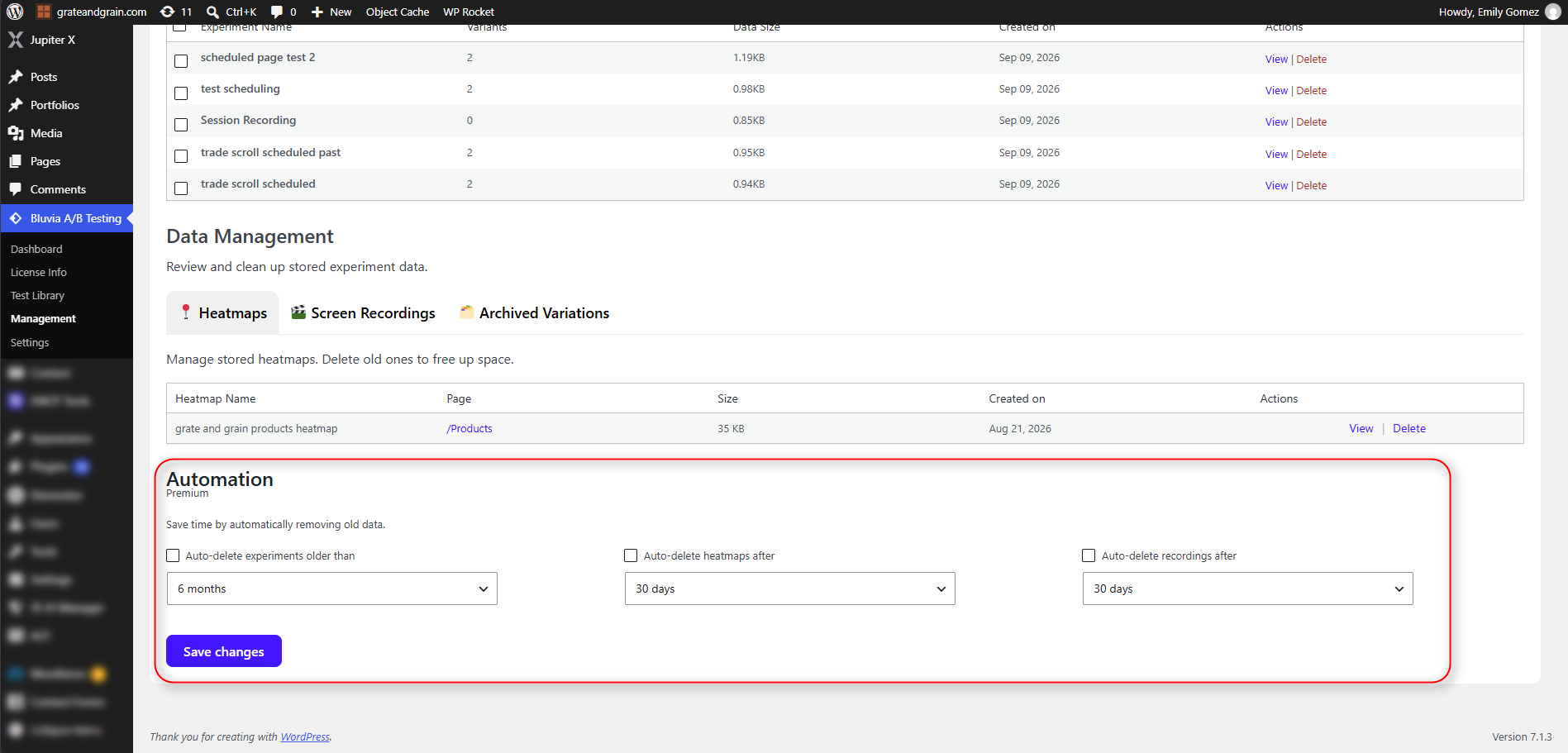
Configuring Automatic Cleanup
1. Auto-Delete Experiments
This setting allows Bluvia A/B Testing to automatically remove old experiments after a specified retention period.
Available options:
To enable:
- Check Auto-delete experiments older than.
- Select 3 months, 6 months, or 12 months.
- Select Save changes.
Choose a retention period that gives you enough time to review experiment results and preserve any reports you may need.
Important: Automatically deleted experiments and their associated data may no longer be available for reporting. Export important results before they become eligible for deletion.
2. Auto-Delete Heatmaps
Heatmaps collect information about how visitors interact with your website, including clicks and scrolling behavior.
Over time, this information can consume storage space.
The Auto-delete heatmaps after setting allows you to remove older heatmap data automatically.
Available options:
To enable:
- Check Auto-delete heatmaps after.
- Select 7 days, 30 days, or 90 days.
- Select Save changes.
Shorter retention periods are useful for websites generating large amounts of heatmap data. Longer periods allow more time to review visitor behavior and identify optimization opportunities.
3. Auto-Delete Session Recordings
Session Recordings capture visitor interactions such as mouse movement, scrolling, and clicks.
Because recordings can generate significant amounts of stored data, you may want to remove older recordings automatically.
Available options:
To enable:
- Check Auto-delete recordings after.
- Select 30 days, 60 days, or 90 days.
- Select Save changes.
Select a retention period based on how frequently you review recordings and how much historical visitor behavior data you need to retain.
Saving Your Cleanup Settings
After configuring your preferred cleanup options:
- Confirm that the checkbox is enabled for each data type you want to clean up automatically.
- Review the selected retention periods.
- Select Save changes.
Only the cleanup options you enable will be used for automatic deletion.
For example, you can enable automatic deletion of recordings while leaving experiment and heatmap cleanup disabled.
Changing or Disabling Cleanup Automation
You can update your cleanup settings at any time.
To change a retention period:
- Navigate to Bluvia A/B Testing → Management.
- Locate the Automation section.
- Select a different retention period for the appropriate data type.
- Select Save changes.
To disable automatic cleanup for a specific data type, uncheck its checkbox and save your changes.
Disabling an option prevents further automatic deletion under that setting. It does not restore data that was previously deleted.
Choosing the Right Retention Period
The appropriate retention period depends on how frequently you run experiments, review visitor behavior, and need access to historical results.
Consider the following:
- Experiments: Retain results long enough to evaluate performance, compare previous tests, and export important reports.
- Heatmaps: Choose a period that allows you to identify visitor interaction patterns before older data is removed.
- Session Recordings: Consider how frequently your team reviews recordings and whether older sessions are still useful.
You can use different retention periods for each data type.
For example, you might retain experiments for 12 months, heatmaps for 30 days, and recordings for 60 days.
These settings can be adjusted as your website’s traffic and storage requirements change.
Manual Data Management
Cleanup Automation is optional. You can also manage stored data manually.
Navigate to Bluvia A/B Testing → Management to access:
- Storage Overview — Review how much storage your experiments, heatmaps, and recordings are using.
- Experiment List — View and manage stored experiments.
- Heatmaps — Manage stored heatmap data.
- Screen Recordings — Manage stored session recordings.
- Archived Variations — Review and manage archived Variant data.
See Data Management for more information about manually reviewing and removing stored data.
Important Considerations
Before enabling Cleanup Automation, keep the following in mind:
- Deleted data may not be recoverable. Export important reports before their data is removed.
- Each cleanup option works independently. You can enable or disable cleanup separately for experiments, heatmaps, and recordings.
- Retention periods can be changed. Review your settings periodically as your reporting needs change.
- Shorter retention periods reduce historical data availability. Make sure your selected periods allow enough time for analysis.